
Getting started
Load your first model
After activation, Spryte opens to the welcome screen. From here, you can choose a built-in avatar, open your own model, reopen a recent file, or drag an FBX or GLB file into the window.
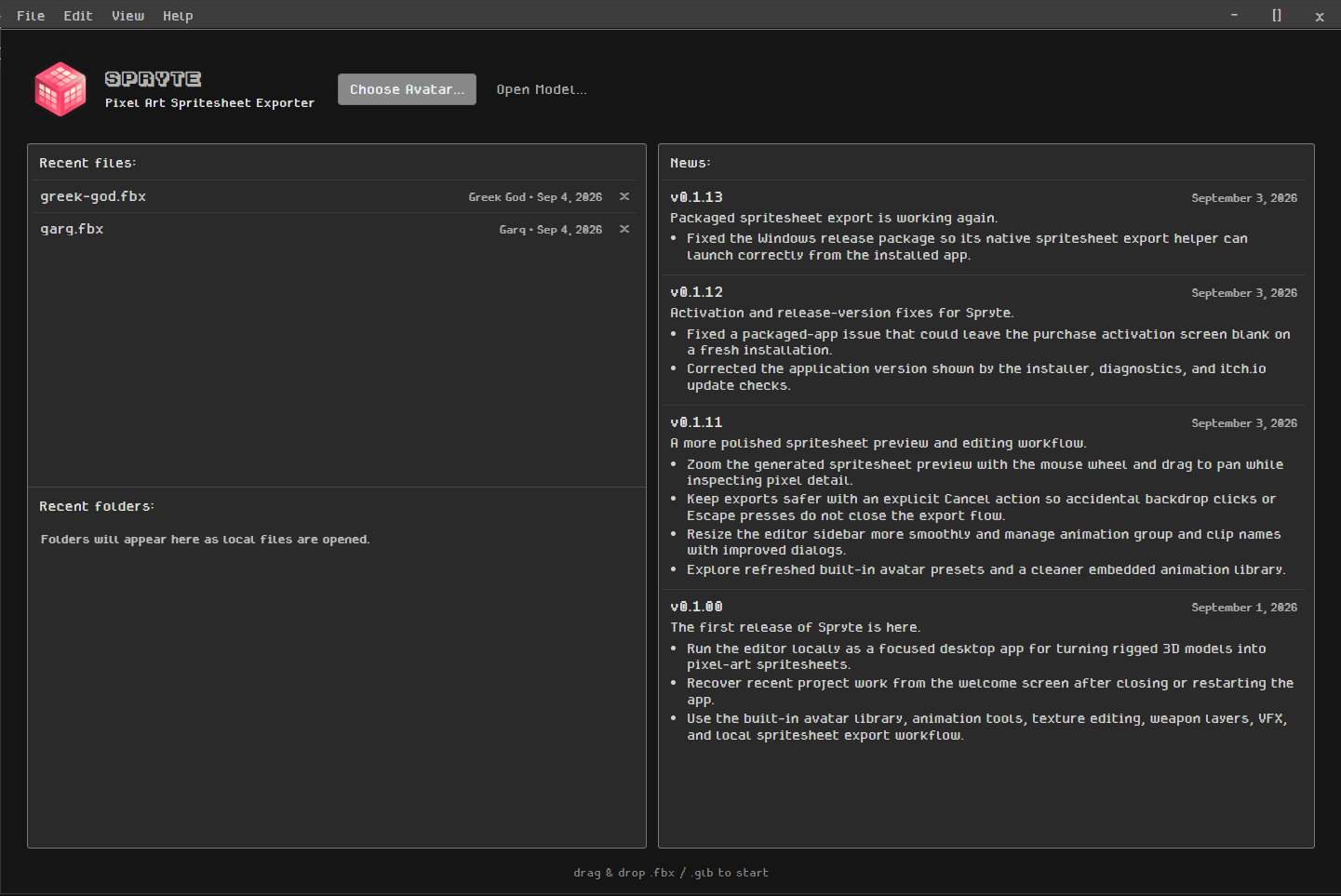
Use a built-in avatar
Select Choose Avatar to open the avatar library.
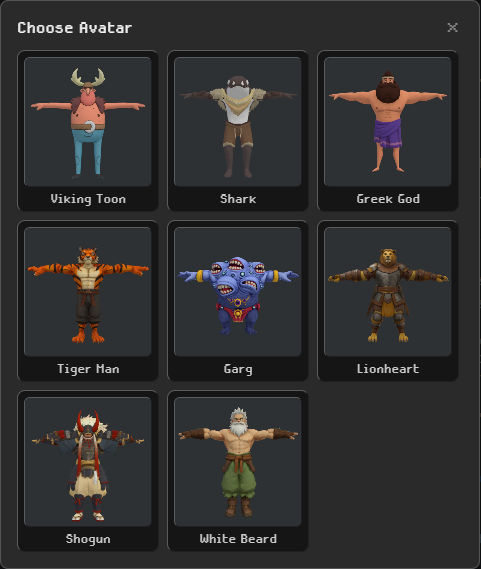
Select an avatar to load it. Spryte includes several ready-to-use characters, each prepared for the built-in animation library. Selecting an avatar opens it in your first editor tab.
Use your own model
Spryte supports 3D character models in FBX (.fbx) and GLB (.glb) formats.
To use the built-in animation library, your model must have a humanoid rig. The retargeting system supports humanoid rigs only, and compatibility depends on the rig.
Find a model
You can find humanoid models on marketplaces such as itch.io and CGTrader, or generate them with AI 3D services such as Meshy and Tripo. These models may come with or without a rig; either way, make sure the final rigged character can be exported as FBX or GLB.
Rig for the built-in animations
For the best results with the built-in animations, use Mixamo’s auto-rigging on an unrigged humanoid model. Export the rigged character from Mixamo in FBX Binary format, then import it into Spryte.
If Mixamo rejects your upload, see Troubleshoot Mixamo auto-rigging for a Blender fix to try.
Use a custom rig
If your model has a custom rig and embedded animations, those animations are imported automatically with the model and appear in the Embedded group. You can use them with the model’s own rig, but retargeting Spryte’s built-in animations to custom rigs is not guaranteed to produce good results.
Import the model
Once your rigged character is saved as an FBX or GLB file, select Open Model on the welcome screen and choose the file. You can also drag the file directly into the welcome screen. Spryte imports the model and opens it in your first editor tab.