
Getting started
Troubleshoot Mixamo auto-rigging
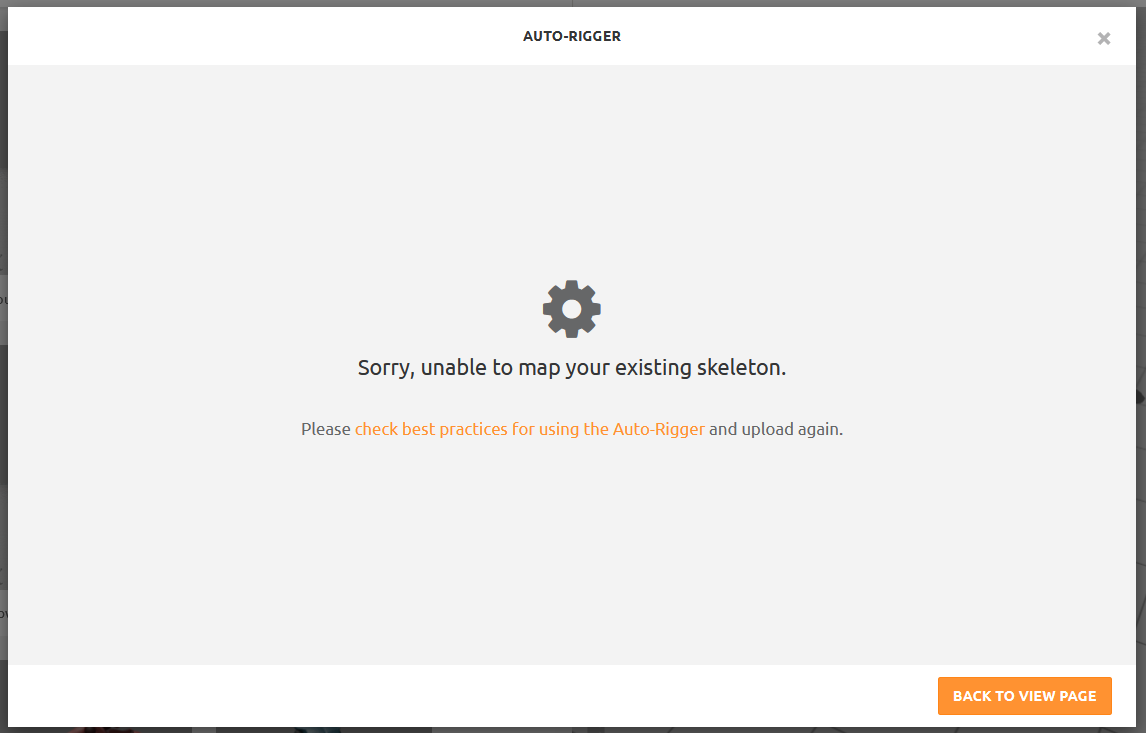
When preparing your own model for Spryte, Mixamo may reject the upload with “Sorry, unable to map your existing skeleton.” This has happened with some AI-generated models. If you see this error, try simplifying the model’s materials in Blender before uploading it again.
-
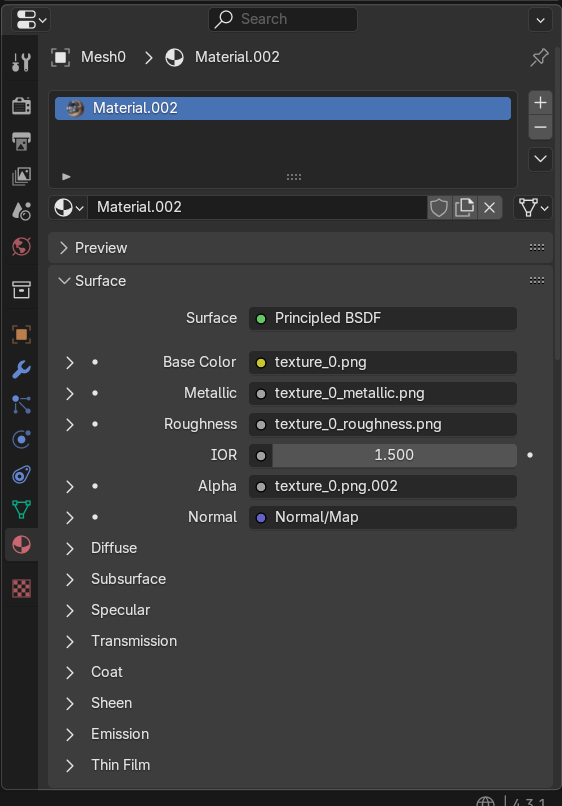
Open the model in Blender. Select its mesh, then open Material Properties (the red sphere icon). Check each material used by the model. The example below has image textures connected to Base Color, Metallic, Roughness, and Alpha.
-
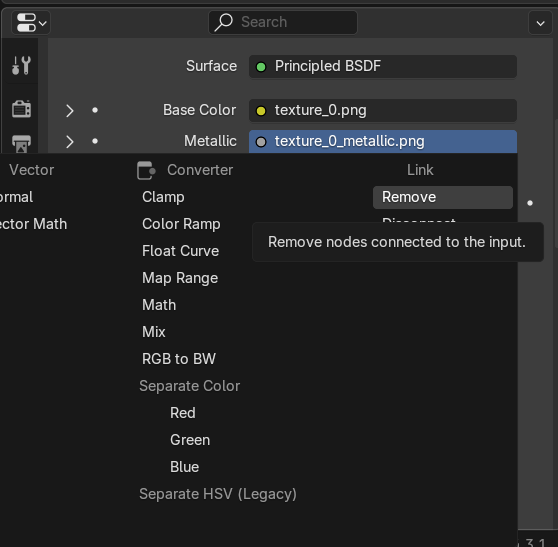
Keep the Base Color texture. For Metallic, Roughness, and Alpha, click the small circle beside each texture and choose Remove to disconnect it. If Alpha changes to a numeric value, set it to 1.0 so the material stays opaque. Repeat for any other materials on the model.
-
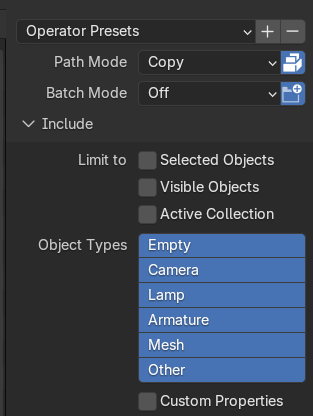
Export the model from Blender as FBX. In the export settings, set Path Mode to Copy and click the Embed Textures icon beside it. Then upload the new FBX file to Mixamo.
Click any screenshot to enlarge it. Click outside the image or press Escape to close it. This can resolve the upload problem for models with these material connections. If Mixamo still reports a skeleton error, the model or its existing rig may need other changes before Mixamo can auto-rig it.